
Outlook users often face issues while working with the application. The “emails disappearing from folders” is one of the common issues that several users have reported on tech forums recently. This issue might be the result of various internal and external factors. In this article, you will get to know the possible reasons behind this issue and how to resolve it.
Reasons for Emails Disappearing from Outlook Folders Issue
Here are some common reasons why emails are missing from Outlook folders:
- Accidental email deletion or archiving
- Incorrect View/Filter Settings
- Corrupted Outlook data file
- POP3 account misconfiguration
- Active Outlook rules
How to Fix Emails Disappearing from Outlook Folders Issue?
Follow these tried and tested solutions to fix the missing emails from Outlook folder issue.
1. Check the Deleted Items Folder
First, check the deleted items folder in your Outlook for disappeared emails. There are chances that you may have accidentally deleted the emails from Outlook folders. Follow the steps given below:
- Open the Deleted Items folder in Outlook.
- Search for the missing emails.
- When found, right-click on them and click Move > Other Folder.
- Choose the folder where you want to move the mails and click OK.
2. Check Other Folders (Junk and Archive)
Sometimes, emails may disappear because they are automatically moved to Junk Email or Archive folders. This can happen when Outlook mistakenly marks the emails as spam or if AutoArchive setting moves older emails to archive folder. In such cases, you can check for the missing emails in Junk and Archive folders.
3. Check and Change View Settings
It might happen that you’ve applied filters or done some other changes in View Settings due to which you’re not able to find some emails in certain Outlook folders. If this is the case, you can check and change the View Settings. Here’s how:
- In your Outlook, click on View on the main menu.
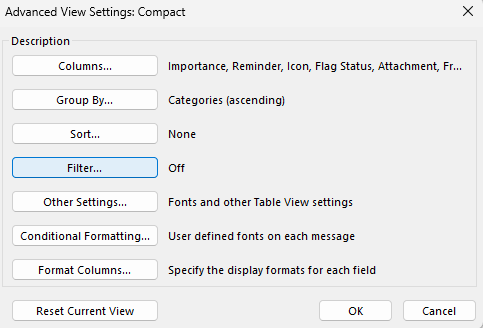
- Click on View Settings and then select Filter.
- Check if any filters are applied to fields like From, Subject, or Date.
- Clear all filter fields and click OK.
4. Review and Modify Email Rules
Rules are used to automatically move incoming emails to another folder. It might happen that you’ve set some rules that are moving emails to some other folder. So, you can check if any rule is causing the issue. Follow the steps below:
- In your Outlook, go to Rules under Home and click on it.
- Select the Manage Rules & Alert option.

- In the Rules and Alerts window, look for rules that are incorrectly moving messages out of your inbox.
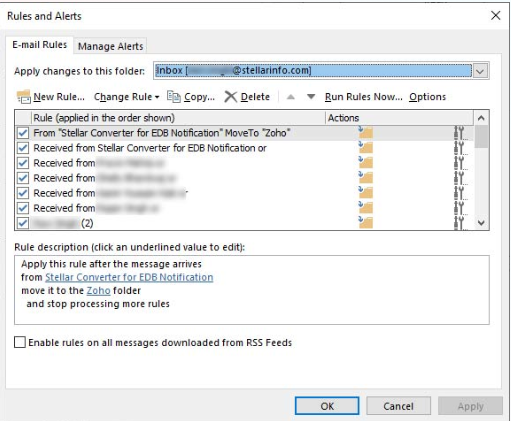
- You can disable those rules by unchecking the box next to them or delete them entirely if they are no longer needed.
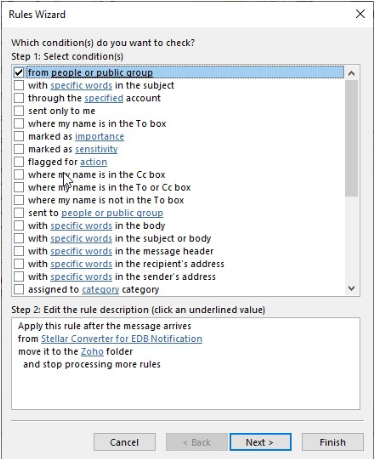
- Click OK to save the changes.
5. Adjust Offline Mail Settings
The Offline Mail Settings in Outlook determines the storage limit of your email data on your local device. If the duration in “Keep mail offline” is set to 6 months then older emails may not display in Outlook mailbox. You can check and increase the duration in Offline Mail settings. Here’s how:
- Launch Outlook application
- Go to File > Account Settings > Account Settings.
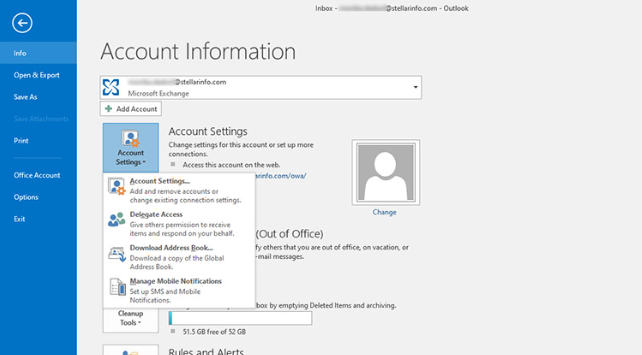
- Under the Email tab, choose your account.
- Then click Change.
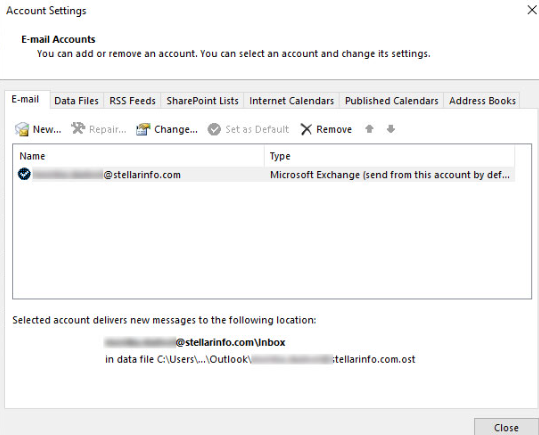
- Find Mail keep to offline under offline settings and move the slider to All.
- Click Next > Done.
- Restart Outlook.
Now, see if you’re able to find your missing emails.
6. Create a New Outlook Profile
A corrupted Outlook profile can cause various issues, including emails disappearing from Outlook folders issue. Creating a new profile can resolve profile-related problems and may help you to get back your emails. Here’s how to create a new profile:
- Close Outlook and open Control Panel.
- Go to User Accounts.
- Click on Mail (Microsoft Outlook).
- Click on Show Profiles.
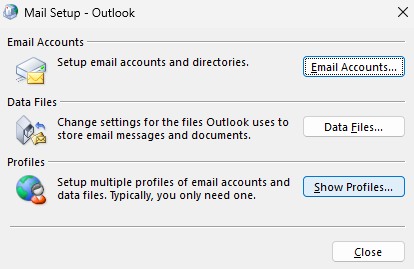
- Click on Add and enter your new profile name.
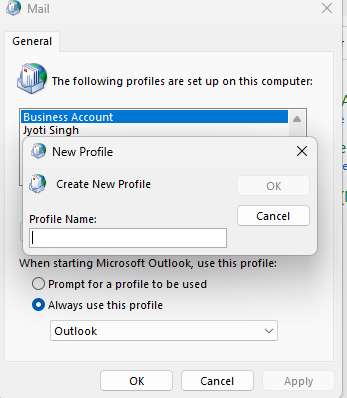
- Add your email account to the new profile by following the setup wizard.
- Select the new profile as your default profile.
- Click OK.
- Now open Outlook with the new profile and allow it to synchronize all your emails.
7. Repair PST File
If your PST file is partially damaged or inconsistent, it may cause the emails disappearing from folders issue. You can use ScanPST – Microsoft’s built in utility – to repair your corrupted PST file. The steps are as follows:
- Go to C:\Program Files\Microsoft Office\Office16 or C:\Program Files(x86)\Microsoft Office\Office16.
Note: Change Office 16 with your program version.
- Double-click on SCANPST to launch it.
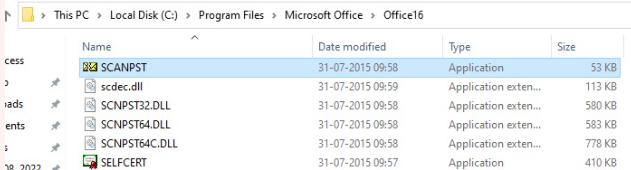
- Click Browse and select the PST file.
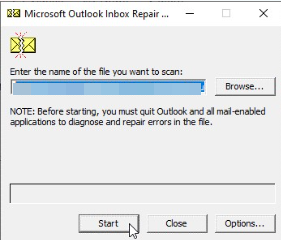
- Click Start. This will scan the PST for errors.
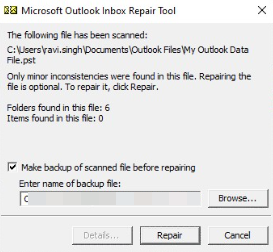
- Click Repair to fix the PST file errors. This may take a while.
- Once repairing is done, restart Outlook and check the folders for the missing emails.
If ScanPST fails to resolve the issue, then your PST file is severely corrupted or oversized. In this case, you can go for a professional PST repair tool, such as Stellar Repair for Outlook. This tool can effectively repair severely corrupt, encrypted, or large-sized PST files. By using this tool, you can recover all your mailbox items, including the deleted mail items. Furthermore, it saves your mailbox data in a new PST that you can import into your Outlook account.
Conclusion
You may encounter the emails disappearing from Outlook folders issue due to various reasons. In this guide, we have covered different ways to find the missing emails, like checking deleted items folder, junk folders, resetting the view settings, etc. If these solutions doesn’t work, then you should try repairing your PST file by using ScanPST. If it fails to repair your PST file, then use Stellar Repair for Outlook. This powerful PST repair tool can fix severely corrupted and large PST files while preserving their structure and hierarchy.
