
Have you ever tried to update your iPhone, but it stops halfway or shows “Update Failed”? This problem can be frustrating when you want the latest iOS features, security, and bug fixes. Hence, using Dr.Fone or simple steps can help you fix the update error quickly, which this guide will cover in detail.
Part 1. Why Your iPhone Update Might Stop or Fail – 5 Reasons
Before you look for the ideal iOS system repair software to fix update issues, learn why this occurs in the first place:
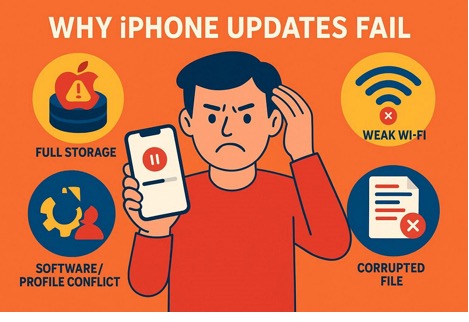
- Not Enough Free Storage: Large iOS updates need several gigabytes of free space to download and install properly. So, if your iPhone storage is almost full, the update can fail or stop at “Preparing Update.”
- Weak or Unstable Internet Connection: A slow or intermittent Wi‑Fi connection can cause the update download to fail on your iPhone. Hence, trying to update on poor cellular data can also cause “Software Update Failed” errors.
- Battery/Power Problems: Be aware that the iPhone requires at least 50 percent battery charge or to be connected to a power source to update safely. If the phone goes off during the update, the update can stop, fail, or freeze.
- Corrupted/Incomplete Update File: An old update that was not completed (or failed) can be saved on your iPhone and prevent any new updates. The system might not pass or install the update due to the incompleteness of the file.
- Software or Profile Conflicts: VPNs, old beta settings or custom network settings may prevent updates to verify. Also, the same mistake is repeated by using an iPhone model that fails to support the latest iOS.
Common Notifications That Show iOS Update Failed
When any iOS update fails, you might see the following alerts and signs:
| Notification Text (Or Similar) | What It Usually Means |
| “Unable to Check for Update” | iPhone cannot reach Apple servers, network problem. |
| “Software Update Failed” | Download was interrupted or corrupted |
| “Unable to Install Update” | File downloaded, but could not install. |
| “Unable to Verify Update” | iPhone cannot verify file wit |
| “There Was a Problem Downloading the Software.” | Update via Mac/PC failed during download. |
Part 2. 5 Fixes to Solve iOS Update Failed (All in One Section)
If an iPhone or iPad is unable to install an update, try the listed ways to resolve the issue:
Fix 1: Dr.Fone – System Repair (iOS) [Best Solution]
Tools like Wondershare Dr.Fone– System Repair (iOS) allow you to fix 150+ System issues like Apple logo or iPhone update failed in real-time. This tool is compatible with the latest iOS 26/iPadOS 26 and iPhone 17 Series and resolves the update issue in 3 simple steps. Additionally, it claims to offer a 100% success rate and to make Recovery Mode freely accessible.
Above all, users can choose between Standard and Advanced Modes to address all types of iOS issues. While making it versatile, Dr.Fone is also suitable for all types of users and requires no learning curve. Another foremost aspect is that the tool is updated weekly to offer innovative solutions for upcoming models.
Key Features
- iTunes Error Repair: Safely fixes common iTunes errors such as 1110, 4013/4014, 3041, 12/43/2001, and over 200 others.
- iOS Upgrade: Upgrade to the latest iOS, including iOS 26, without iTunes or a developer account, keeping your data intact.
- iOS Downgrade: Safely downgrade from iOS 26 to any signed version without losing data.
Simple Guide to Fix the Failed Update Issue with Dr.Fone
To know how you can use this iOS system repair tool, follow the given step-by-step guide:
Step 1. Access the System Repair Tool on Dr.Fone
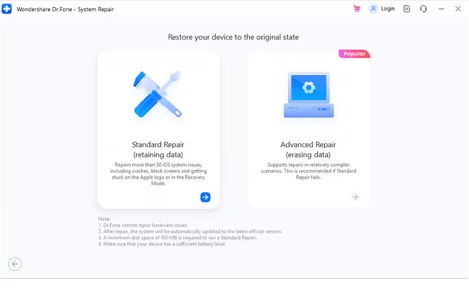
After choosing the System Repair tool, press the “Repair Now” button in the iOS Repair feature as you connect the device, and pick “Standard Mode.”
Step 2. Enter the Recovery Mode to Download Firmware
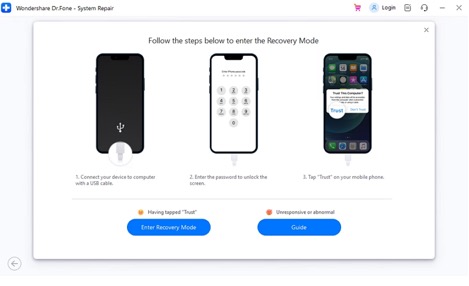
Follow the “Guide” to enter the Recovery Mode and wait for the tool to detect iOS Firmware.
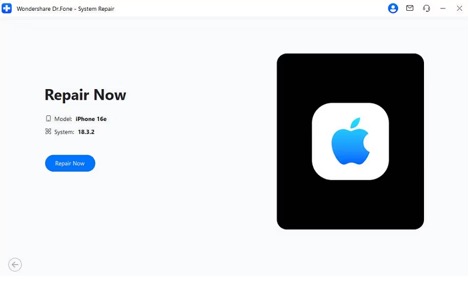
Step 3. Pick the Repair Now Button to Fix Failed Updates
Once displayed, select the “Download” button to install and choose the “Repair Now” button.
Fix 2: Free Up iPhone Storage
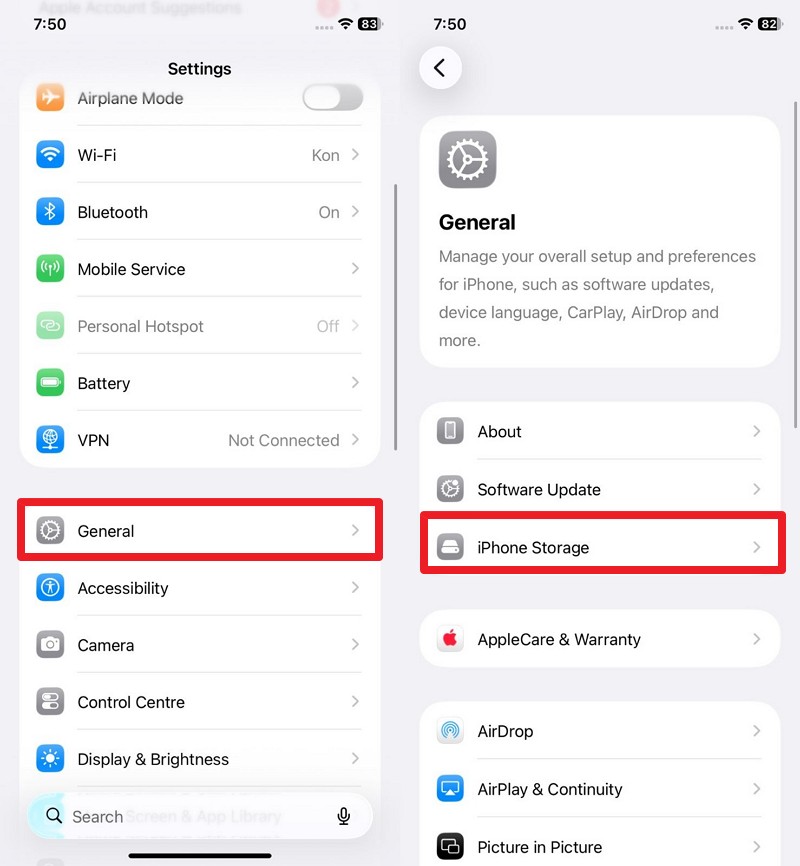
When an iPhone software update failed error occurs, old and failed downloads take up space and block new updates. Thus, clearing space improves iPhone speed, reduces crashes, and helps future updates, as guided below:
Step 1. In General settings, choose “iPhone Storage,” then pick the app to free up space.
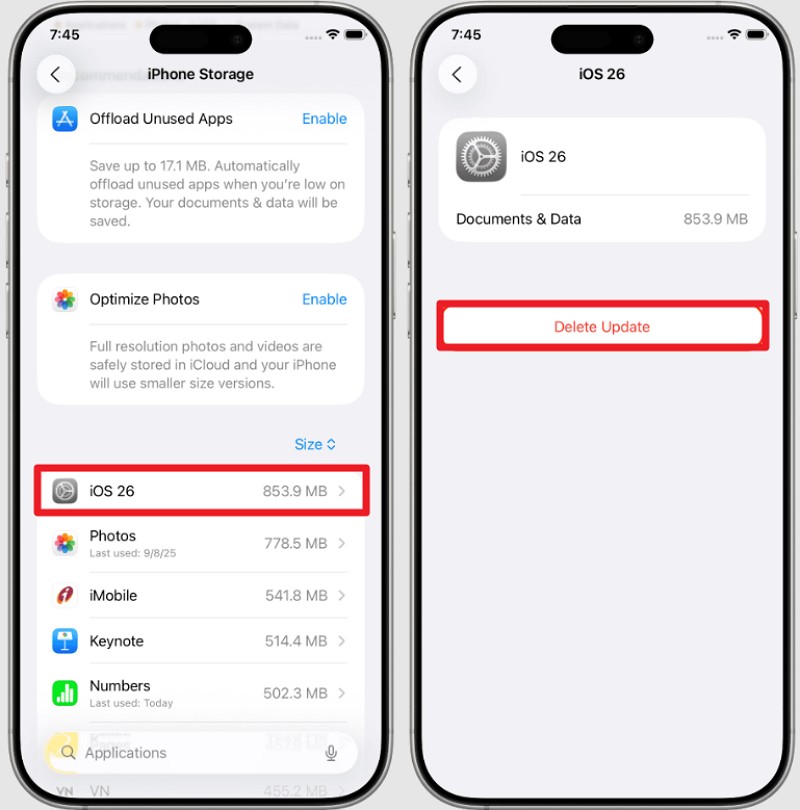
Step 2. Scroll down on new interface or search for “iOS Update” option. Press it and choose the “Delete Update” option. Confirm by picking the “Delete Update” option as it appears on the popup.
Fix 3: Restart iPhone and Retry Update
In addition to the iOS system repair tool, a restart clears temporary system glitches by reloading iOS processes and updating services. It stops stalled updates that got stuck on “Preparing Update” or halfway through, and is instructed below:
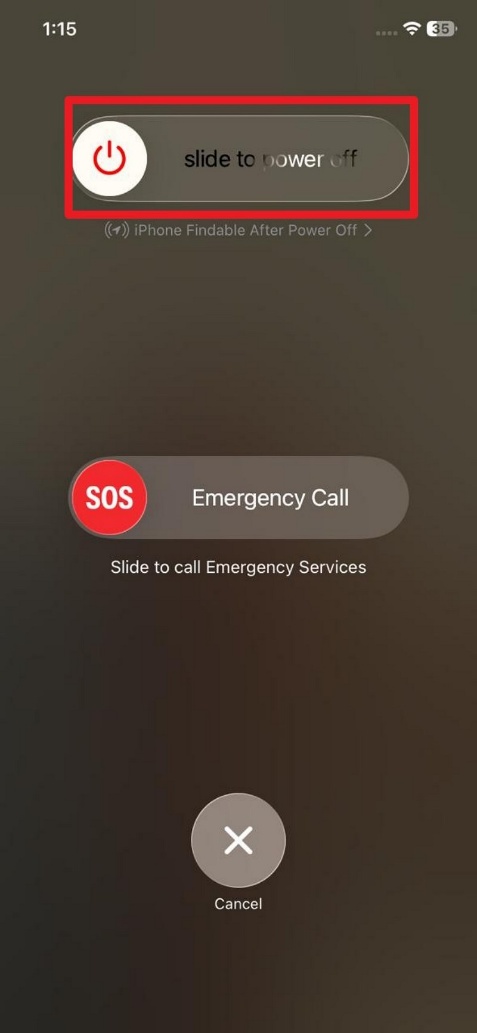
Instructions. Press the “Power + Volume” up button and slide the “Slide to Power Off” slider. Wait for a few seconds, then press the “Power” button to restart the device.
Fix 4: Try to Update via iTunes
When the iOS update fails, this fix avoids over-the-air glitches by using the computer’s connection, which is often more reliable. Finder/iTunes offers better error detection, lets you back up data first, and is illustrated ahead:
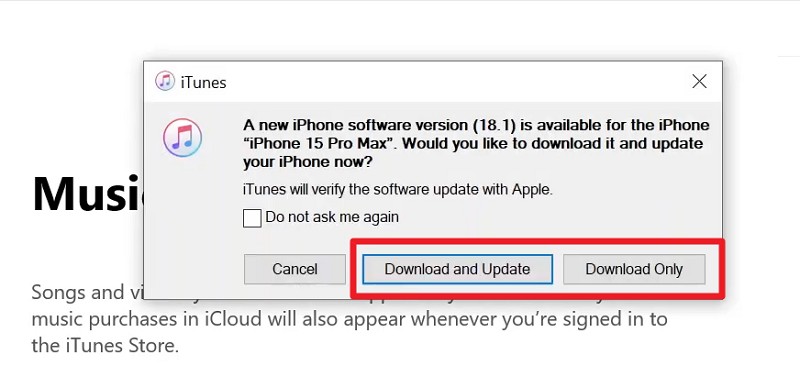
Step 1. Choose the “Download and Update” or “Download Only” option in iTunes when you connect the device.
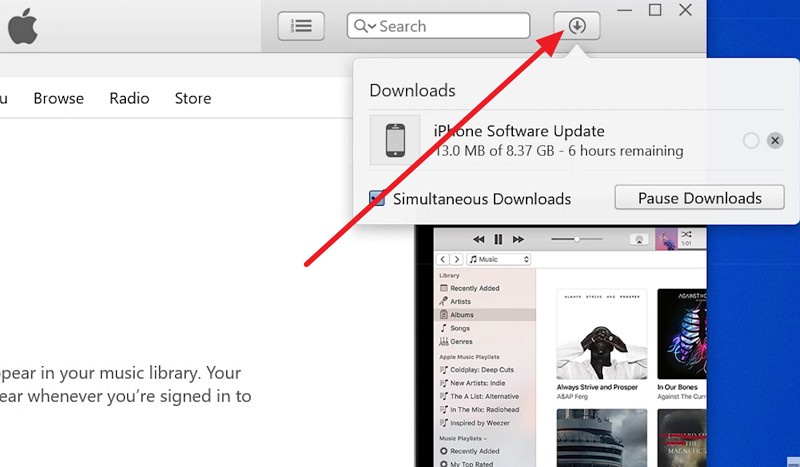
Step 2. Press “Next > Agree,” and tap the “Download” icon to monitor progress.
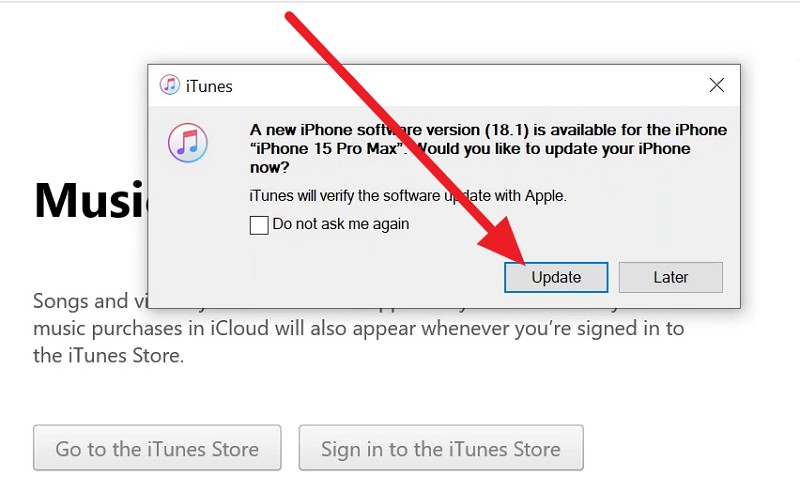
Step 2. When it ends, press the “Update” option and let iTunes verify and update it.
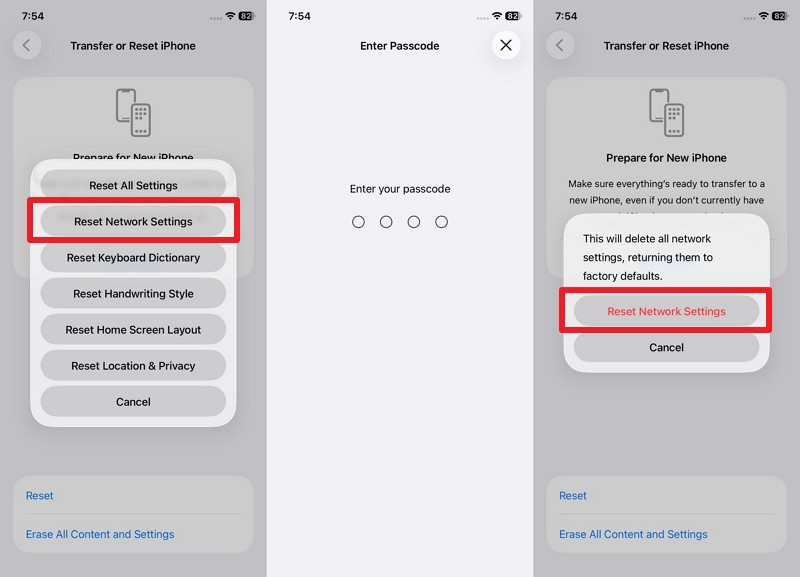
Fix 5: Reset Network Settings or All Settings
Other than using iOS system repair tools, Reset Network Settings clears Wi‑Fi, cellular, VPN, DNS, and carrier problems that block downloads or verification. It also removes old VPN or APN profiles while keeping all personal data safe, as shown:
Step 1. Pick “Transfer or Reset iPhone” in General settings and press “Reset.”
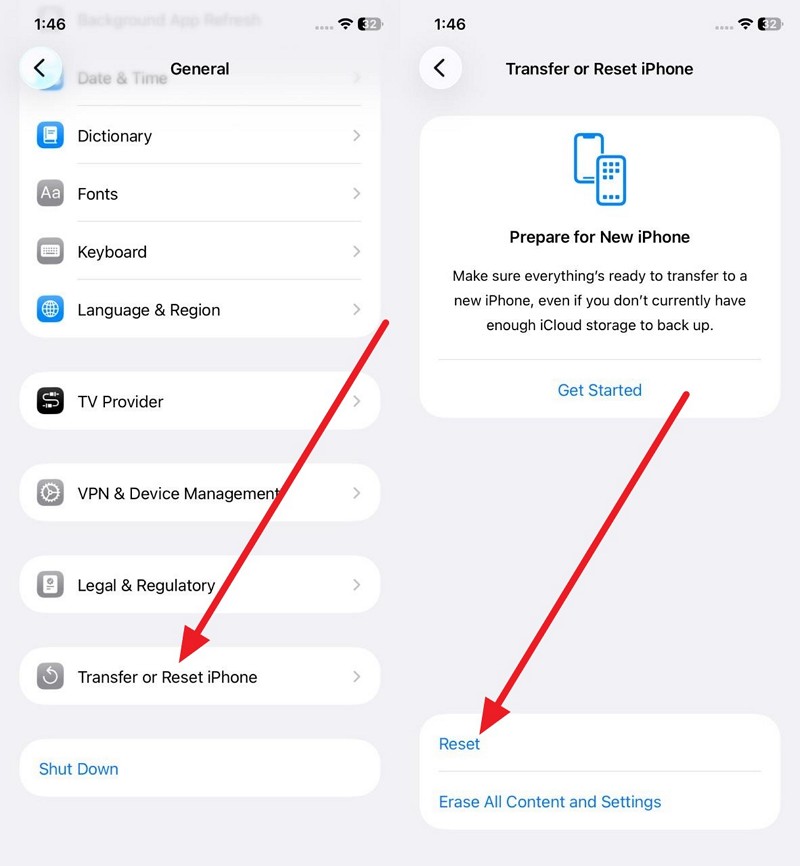
Step 2. Choose “Transfer or Reset iPhone > Add Passcode > Pick Reset Network Settings” option to confirm.
Conclusion
To sum up, this guide has explained how iOS system repair tools like Dr.Fone can easily fix the iOS update failed issues. So, repair iPhone system errors effortlessly and without data loss using Dr.Fone iOS system repair software now. It also helps prevent future update interruptions by restoring system stability and ensuring smoother iOS upgrades.
