
Android devices are not immune to issues like every other technology. They may shut down suddenly, stop responding, get stuck in a continuous reboot loop, or apps may simply not function properly. Most people, when faced with such situations, think that a factory reset is the only way and go for it immediately. However, this may not be the correct (or safe) way at all. Knowing how a factory reset is different from a system repair for Android will not only enable you to pick the right approach but also get rid of the issue quicker and save your data that can be lost due to the troubleshooting of your Android phone.
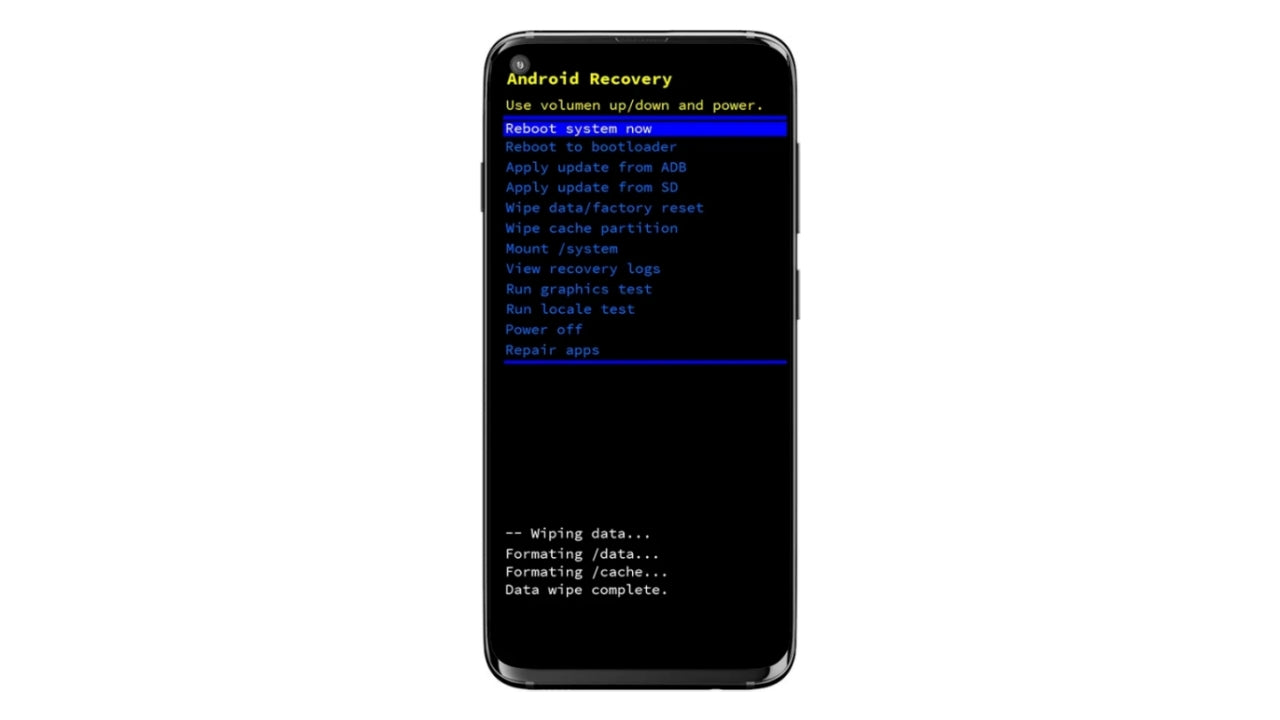
What is a Factory Reset?
A factory reset completely removes all user files and changes in an Android device, thereby resulting in the device being like a fresh, brand new one. In fact, a factory reset is the first major step that people generally think of taking when their phone starts acting up.
Examples of common situations when a factory reset may be useful:
- The gadget gets pretty slow if you keep it for a long time, like for years or even months.
- The apps just keep crashing and freezing, and the whole system seems like it is lagging so much.
- The device is restarted, app caches are cleared, and the problem is still there.
Main features:
- Removes all kinds of user data, including apps, photos, messages, and accounts (unless backed up)
- Changes all the settings back to the original default ones
- Through system settings, or if the phone fails to boot, one can perform a factory reset in recovery mode
Factory Reset Steps
Step 1: Back up your data
Before proceeding, ensure all important data is safely backed up using Google Backup, external storage, or a trusted backup tool such as Dr.Fone.
Step 2: Access factory reset settings
Navigate to Settings > General Management > Reset > Factory data reset.
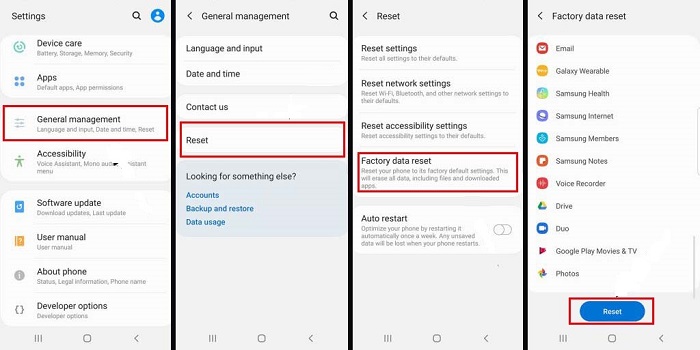
Step 3: Confirm and complete the reset
Review the information displayed, confirm the reset, and allow the device to erase data and restart with default factory settings.
What is System Repair for Android?
System repair is a focused fix for issues with the Android operating system itself without resorting to a complete factory reset. It doesn’t rule out user data but rather fixes damaged system files, unsuccessful updates, and OS-level problems that cause the device to behave unusually.
Dr.Fone System Repair (Android) is one of the most common tools in this category. It is a desktop software program that basically acts as a lifesaver for the toughest Android system troubles such as boot loops, black screens, stuck logo, bricked devices, and frequent crashes. The process is guided, automatic, and does not need a high level of technical skill; basically, anyone without a technical background can deal with it smoothly.
Curious to see how easily your Android issues can be fixed? Visit the Android Repair website to learn more and explore step-by-step solutions.
Typical problems system repair can fix:
- Infinitely rebooting the phone, or the phone is stuck on the logo
- Black or frozen screen (including Samsung Black Screen of Death)
- The system is crashing after an unsuccessful update
- Device not powering on or restarting without ceasing
- Apps keep crashing because the underlying operating system is being corrupted
Main features:
- Fix the Android OS rather than wipe it out
- Generally, keeps the user’s data (depending on the device and the issue)
- Done with a computer-based repair tool
- The perfect solution for in-depth system-level problems
System Repair with Dr.Fone (Android) – Step-by-step guide:
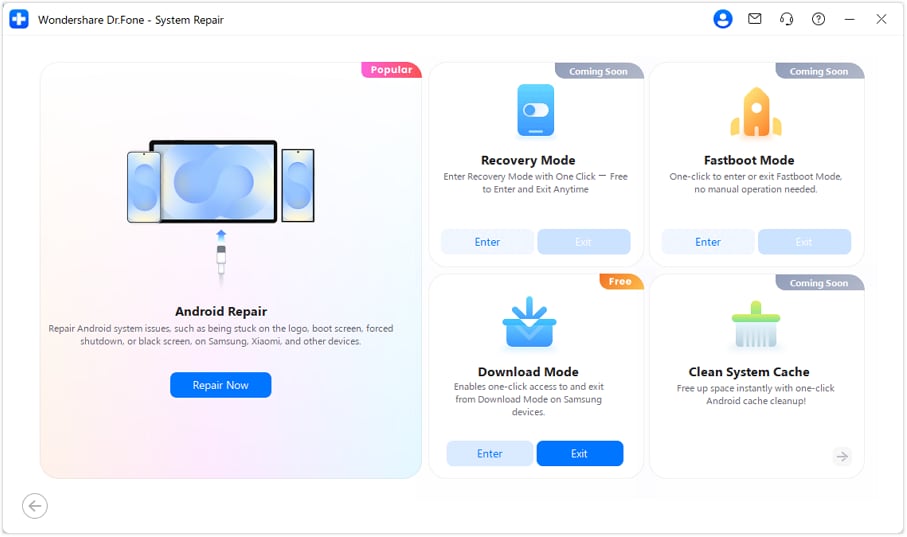
Step 1. Launch Dr.Fone and connect your Samsung device
Open Wondershare Dr.Fone, go to Toolbox, connect your Samsung device, select System Repair, choose Android, click Android Repair, then Repair Now.
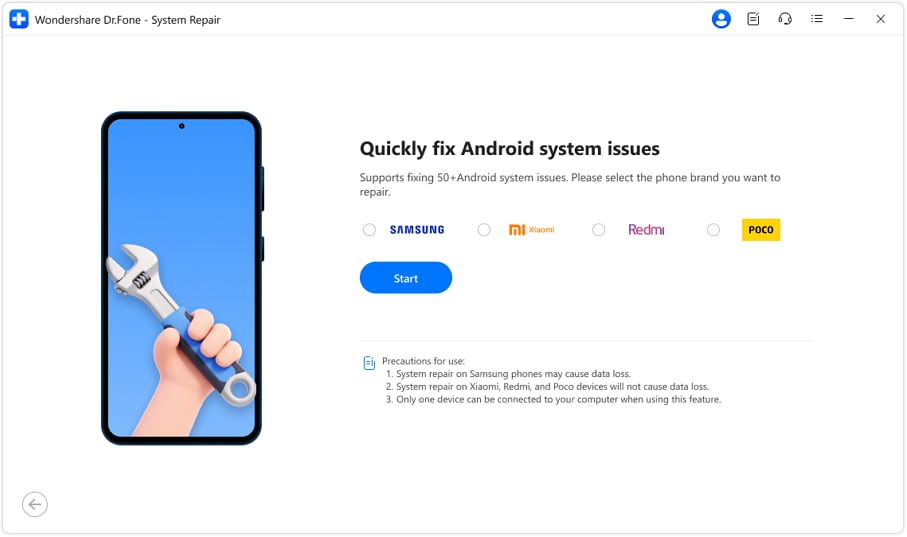
Step 2. Select the brand and confirm details
Choose Samsung as the brand, confirm Name, Model, Country, and Carrier, check “I agree with the warning and I am ready to proceed”, and click Next.
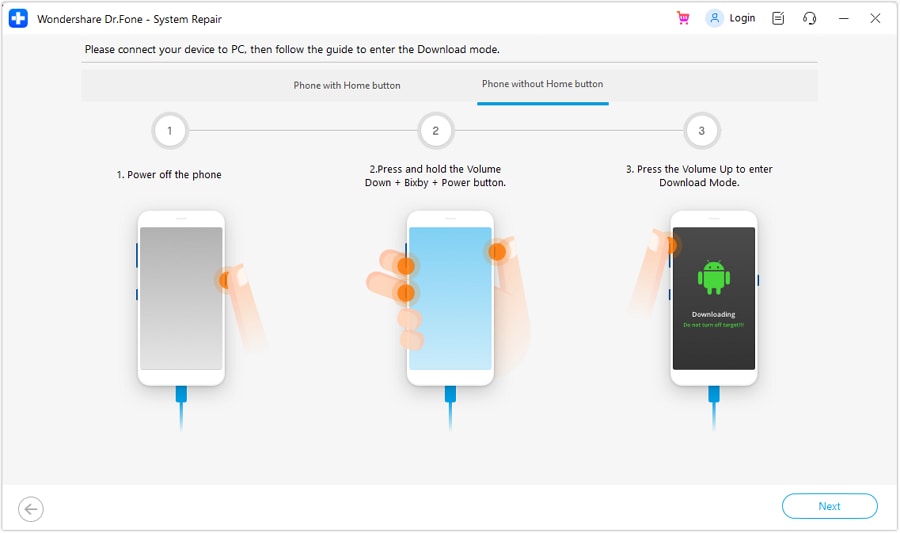
Step 3. Enter Download Mode
For devices with a Home button, power off and hold Volume Down + Home + Power, then press Volume Up.
Step 4. Download and install firmware
Dr.Fone will detect firmware automatically. Click Fix Now, type “000000” to confirm, and let the installation complete.
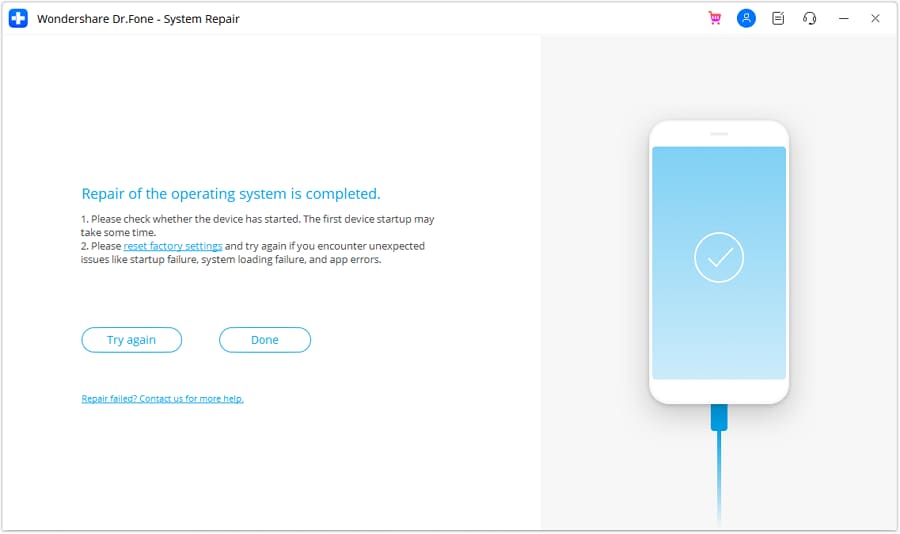
Step 5. Complete the repair
After rebooting, click Done if the device starts normally, or Try Again if it doesn’t.
Factory reset vs system repair: when to use which solution
Scenario A Soft issues (minor errors)
- Random app crashes
- Minor freezes
- Battery drains or sluggish UI
Recommended approach:
Always start with the easiest fixes: reboot your device, install the updates for your apps, and delete the cache.
Scenario B System firmware corruption
- Device stuck in a boot loop
- Black screen or failure to boot normally
- Frequent system crashes
Recommended approach:
System repair programs such as Dr.Fone should be your top option because they fix the Android operating system directly. Furthermore, they can fix complex system errors even in the case when a factory reset fails or cannot be done.
Scenario C Severe but simple user errors
- Excessive personal settings slowing performance
- Wanting a fresh start without system file repair
Recommended approach:
Here, a factory reset is the more sensible choice since it deletes user data and configuration clutter and works well when the source of the problems is the settings or the apps rather than the firmware corruption.
Scenario D All other methods have failed
- Standard troubleshooting did not work
- System repair was unsuccessful
Recommended approach:
A factory reset should be the last option after you have tried every other stuff. And before doing a factory reset, you must back up your data so that you don’t lose it permanently.
Conclusion
Understanding the right situation for a factory reset and a system repair can be a great time saver, protect your data, and spare you from frustration. For minor issues or when you want to keep your files, system repair is generally the right way, fixing the OS without deleting your data. A factory reset is best when the device’s performance is noticeably impacted by a messed-up setting or a deeply ingrained user-level error. In cases of firmware corruption or boot loops, system repair tools like Dr.Fone can be a very good, reliable, and efficient solution. Knowing the distinction allows you to select the right method for your Android device, keep it running smoothly, and at the same time minimize data loss.
